Connect Gmail as a mailbox source
Use this guide to connect a Gmail mailbox to MailWebhook and verify that new Gmail messages can reach your webhook route.
MailWebhook uses Google OAuth for Gmail. You do not enter an IMAP host, password, or app password for the native Gmail connector.
Table of contents
- Prerequisites
- Connection steps
- Gmail label ID field
- What happens after consent
- Setup checks
- Verify payload and delivery
- Send Gmail messages to Slack
- Backfill older Gmail messages
- Common errors
- Related docs
Prerequisites
You need:
- A MailWebhook account with a verified user email.
- A MailWebhook project with connected-mailbox capacity available.
- A Gmail or Google Workspace mailbox you can authorize through Google OAuth.
- A route and endpoint if you want to verify delivery immediately after setup.
MailWebhook requests read-only Gmail access. The default Gmail OAuth scope is:
https://www.googleapis.com/auth/gmail.readonly
Connection steps
Open Mailboxes and click Add Mailbox.
- Set Provider to Gmail.
- Leave Gmail label ID (optional) blank unless you want to monitor only one Gmail label.
- Click Add Mailbox to start the Google OAuth flow.
- Complete the Google OAuth consent flow.
- Return to MailWebhook and confirm the mailbox appears in Mailboxes.
In onboarding or other modal flows, choosing Gmail can open the Google OAuth flow in a popup. If the popup is blocked, allow popups for MailWebhook and start the connection again.
Use INBOX when you want MailWebhook to watch only new messages that carry Gmail’s inbox label. For a custom Gmail label, use the underlying Gmail label ID instead of the display name.
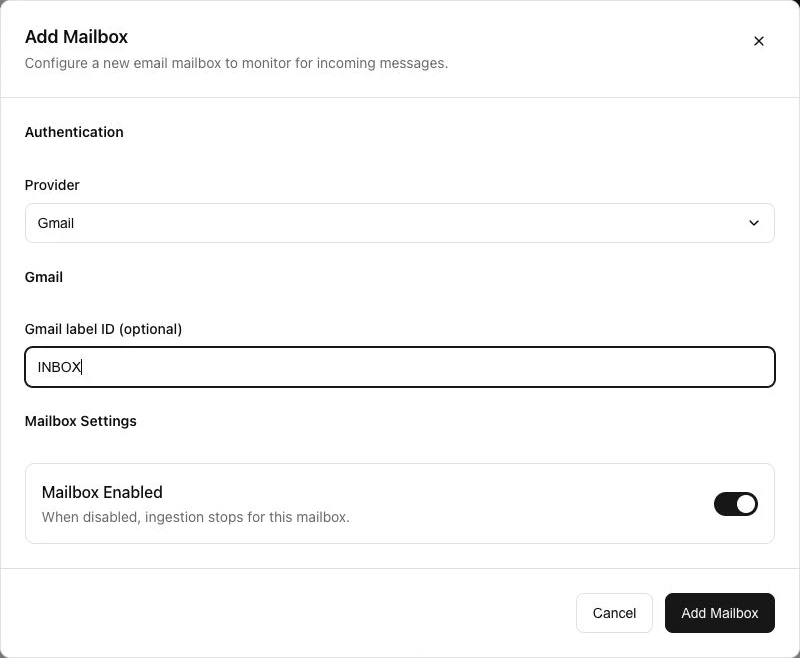
Gmail label ID field
The Gmail-specific field is Gmail label ID (optional).
Use it when the MailWebhook route should only receive messages from one Gmail label.
Common values:
| Value | Meaning |
|---|---|
INBOX | Monitor messages that have Gmail’s inbox label. |
| A Gmail label id | Monitor messages that have that exact Gmail label id. |
| Blank | Use the default mailbox scope configured by the Gmail integration. |
The value is stored as the mailbox label_filter. MailWebhook includes it when it establishes the Gmail watch and when it reads Gmail history for new messages.
Use the label id for custom Gmail labels. Display names can be ambiguous.
What happens after consent
After Google returns control to MailWebhook, MailWebhook:
- Reads the Gmail profile email address.
- Creates or reconnects the Gmail mailbox for the current project.
- Stores the OAuth refresh token securely.
- Stores a Gmail history cursor.
- Establishes a Gmail watch for new message notifications.
New Gmail connections start from the current Gmail history cursor. They do not import older mail during normal setup. Use mailbox backfill when you need messages that arrived before the Gmail mailbox was connected.

Setup checks
After the OAuth flow completes, check:
- The mailbox is listed in Mailboxes.
- The mailbox source is Gmail.
- The mailbox is enabled.
- Your route rule matches the Gmail address or the recipients you expect.
- Your route pipeline uses the mapper you want, such as
map.generic_json. - Your endpoint returns
2xxonly after it accepts the request.
If you configured a Gmail label ID, send a new message that receives that label as it arrives. Live Gmail sync uses the stored label filter. Use Gmail backfill for older labeled messages.
Verify payload and delivery
Send a new email to the connected Gmail mailbox. Then open Events or Webhook Preview.
Use a message that arrives after the Gmail mailbox is connected. That is the setup check for live Gmail sync. Backfill is a separate action for older Gmail messages and should not be used as the first setup check.
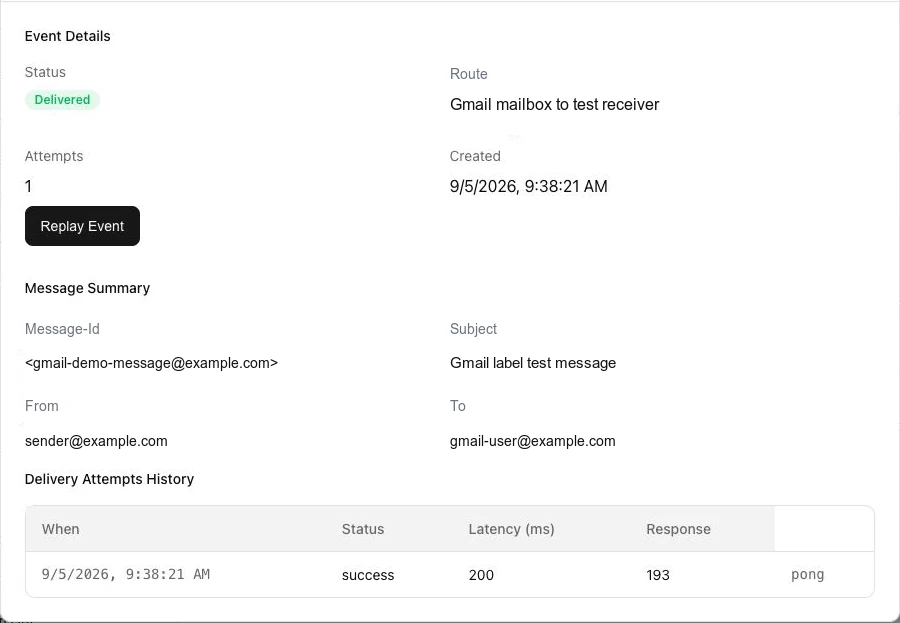
For a route that uses map.generic_json, the payload includes meta.source set to gmail:
{
  "schema": {
    "name": "mailwebhook.generic",
    "version": "1"
  },
  "event": {
    "id": "11111111-1111-4111-8111-111111111111",
    "project_id": "22222222-2222-4222-8222-222222222222",
    "route_id": "33333333-3333-4333-8333-333333333333",
    "created_at": "2026-06-28T12:00:02Z"
  },
  "message": {
    "message_id": "<message-id@gmail.com>",
    "message_id_type": "original",
    "subject": "Gmail test",
    "date": "2026-06-28T12:00:00Z",
    "from": [{ "email": "sender@example.com" }],
    "to": [{ "email": "connected@example.com" }]
  },
  "body": {
    "attachments": [],
    "text": "Test message"
  },
  "meta": {
    "source": "gmail",
    "raw_size_bytes": 2048,
    "received_at": "2026-06-28T12:00:00Z"
  }
}
The exact payload depends on your route pipeline. See Webhook payload reference for mapper choices and Generic JSON for the full default payload contract.
Send Gmail messages to Slack
After Gmail events are arriving in MailWebhook, use Send Gmail messages to Slack to route label-scoped Gmail messages into a Slack channel. Start with a narrow route rule, test with a new labeled message, and confirm the MailWebhook event before checking the Slack result.
Backfill older Gmail messages
Normal Gmail setup starts from the current mailbox cursor. To ingest older messages, open the mailbox actions menu and start Backfill.
Backfill runs in UTC day windows and is bounded by your plan’s backfill limit. It is separate from live Gmail sync.
Common errors
Please verify your email address
MailWebhook requires a verified user email before connecting a Gmail mailbox. Verify your MailWebhook user email and start the Gmail connection again.
Popup was blocked
Allow popups for MailWebhook and retry the Gmail connection. This applies to modal flows that open Google OAuth in a popup window.
Gmail connection failed
Start the connection again and complete the Google consent flow. If the error persists, check whether your Google account or organization blocks third-party OAuth access.
No refresh token returned
The OAuth flow must return a refresh token so MailWebhook can keep the mailbox connected. Retry the flow and approve consent when Google asks.
Mailbox limit reached
Your project has no connected-mailbox capacity left. Remove an unused connected mailbox or change to a plan with more connected mailboxes.
New mail is not arriving
Check these items:
- The Gmail mailbox is enabled.
- The message arrived after Gmail setup completed.
- The message has the Gmail label you configured, if you set Gmail label ID (optional).
- The route rule matches the message.
- The endpoint accepts the delivery with a
2xxresponse.
If you need to inspect provider-real message fields, send a normal email to the Gmail mailbox. Route-level test events are useful for route and endpoint checks, but they do not prove Gmail label filtering.