Send inbound email to Slack
Use this recipe when important inbound emails should appear in a Slack channel as short, readable messages.
MailWebhook connects the mailbox, applies a route rule, transforms the email with map.slack_simple, and posts the final JSON body to Slack. The Slack mapper emits channel and text; Slack authentication stays on the endpoint as an HTTP header.
For product context, see Email to Webhook. For Slack API behavior, see Slack’s chat.postMessage reference.
Table of contents
- Short answer
- When to use this
- Prerequisites
- Fast path: use Setup Wizard
- Manual setup
- Endpoint behavior
- Verify the result
- Send Gmail label messages to Slack
- Common failure checks
- Related docs
Short answer
Create a MailWebhook endpoint that posts to Slack chat.postMessage, add the Slack bot token as a custom Authorization header, and create a route whose final pipeline step is map.slack_simple.
Use a route rule to decide which emails reach Slack. The Slack mapper then creates this request body:
{
  "channel": "C0123456789",
  "text": "[Ops] Subject: Backup failed\nFrom: Alerts <alerts@monitor.example>\nBackup job nightly-db failed on db-03."
}
MailWebhook sends that JSON body exactly as the endpoint request body. It also adds MailWebhook delivery headers such as X-MailWebhook-Signature and X-Idempotency-Key.
When to use this
Use the Slack recipe for:
- Operational alerts that arrive by email.
- Vendor, billing, or invoice notifications that a team should see quickly.
- Contact form or lead notifications that should reach a shared channel.
- Monitoring systems that can send email and need a Slack bridge.
Use map.slack_simple when a compact Slack message is enough. Use Custom JSON when the Slack receiver needs a richer body, such as custom blocks or route-specific fields.
Prerequisites
You need:
- A MailWebhook account and project.
- A connected mailbox source, such as Gmail, Microsoft 365, Office 365, Outlook, IMAP, Hosted Mailbox, or Loopback for testing.
- A Slack app or bot token that can post messages with
chat.postMessage. - A Slack channel ID, such as
C0123456789. - The Slack bot invited to the target channel.
For the MailWebhook Slack onboarding helper, use the channel ID. Do not use a #channel-name value there.
Fast path: use Setup Wizard
Use this path when you want MailWebhook to create the Slack endpoint and route pair for you.
1. Choose a mailbox
Open Onboarding and choose the mailbox source that should receive the email.
For a quick test, use the loopback mailbox. For production, use the Gmail, Microsoft 365, Office 365, Outlook, IMAP, or hosted mailbox source that receives the messages you want in Slack.
2. Choose Slack as the destination
In the endpoint step, choose Slack.
Enter:
- Slack bot token.
- Slack channel ID.
Saving the Slack destination creates:
- A Slack endpoint that posts to
https://slack.com/api/chat.postMessage. - A custom
Authorization: Bearer ...endpoint header. - A route using
map.slack_simple. - A route rule scoped to the selected mailbox address.
3. Send a test email
Send a normal email to the selected mailbox address.
Use a subject and body that make the Slack result easy to recognize:
Subject: Slack route test

This email should appear in the Slack channel through MailWebhook.
4. Verify Slack and MailWebhook
Check both places:
- Slack channel: the message appears in the selected channel.
- MailWebhook Events or Webhook Preview: the event shows the route and delivery attempt.
The delivery is successful in MailWebhook when Slack returns a 2xx HTTP response.
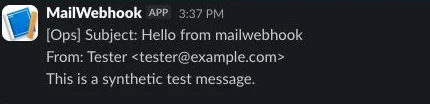
The Slack channel result should agree with the MailWebhook event: same synthetic subject, sender, and message body. In the captured test, MailWebhook recorded one delivered attempt and Slack displayed the message from the MailWebhook app. The visible body is This is a synthetic test message.
Manual setup
Use this path when you want to configure the endpoint and route JSON directly.
1. Create the Slack endpoint
Open Endpoints and create an endpoint with:
| Field | Value |
|---|---|
| Webhook URL | https://slack.com/api/chat.postMessage |
| Custom header | Authorization: Bearer xoxb-your-token |
| Timeout | Keep the default unless your project uses a different standard. |
MailWebhook sends Content-Type: application/json automatically.
2. Create the route rule
Open Routes and create a route for the Slack endpoint.
Start with a narrow rule so Slack receives only useful messages:
{
  "to_emails": ["alerts@example.com"],
  "from_domains": ["monitor.example"],
  "subject_contains": ["failed", "critical", "down"]
}
Rules are AND-ed across populated top-level fields. In this example, the message must be addressed to alerts@example.com, come from monitor.example, and contain at least one of the subject terms.
3. Add the Slack pipeline
Use html_to_text before the mapper when the source emails are mostly HTML.
{
  "steps": [
    {
      "name": "html_to_text",
      "args": {
        "prefer": "html",
        "width": 0
      }
    },
    {
      "name": "map.slack_simple",
      "args": {
        "channel": "C0123456789",
        "prefix": "[Ops]",
        "max_chars": 700,
        "include_from": true
      }
    }
  ]
}
map.slack_simple must be the final pipeline step.
4. Full route JSON example
{
  "name": "Operational alerts to Slack",
  "endpoint_id": "0f5a83e4-8220-4f0d-917e-6be20d9dc32d",
  "signing_secret_kid": "route-signing-prod",
  "enabled": true,
  "rule": {
    "to_emails": ["alerts@example.com"],
    "from_domains": ["monitor.example"],
    "subject_contains": ["failed", "critical", "down"]
  },
  "pipeline": {
    "steps": [
      {
        "name": "html_to_text",
        "args": {
          "prefer": "html",
          "width": 0
        }
      },
      {
        "name": "map.slack_simple",
        "args": {
          "channel": "C0123456789",
          "prefix": "[Ops]",
          "max_chars": 700,
          "include_from": true
        }
      }
    ]
  }
}
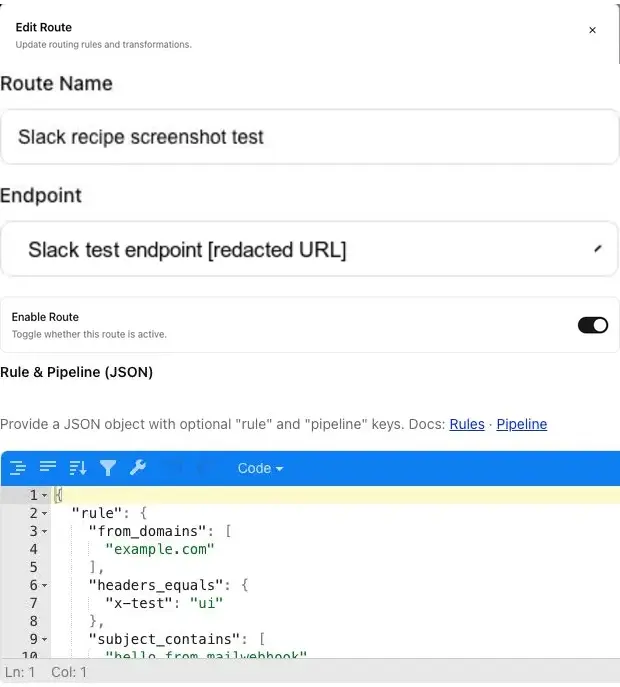
A saved route should show cropped sections from the current MailWebhook route modal: the route name, redacted Slack endpoint, enabled state, and Rule & Pipeline JSON editor. The captured test route uses only synthetic sender, recipient, subject, and header values. The screenshot labels the secret destination as Slack test endpoint [redacted URL]. The endpoint URL is redacted because Slack webhook URLs and bot tokens are credentials.
Endpoint behavior
MailWebhook delivers the route pipeline output as a JSON POST request.
For the Slack simple mapper, the body has this shape:
{
  "channel": "C0123456789",
  "text": "[Ops] Subject: Backup failed\nFrom: Alerts <alerts@monitor.example>\nBackup job nightly-db failed on db-03."
}
MailWebhook also sends its normal delivery headers:
X-MailWebhook-SignatureX-Idempotency-KeyContent-Type: application/json- Any custom endpoint headers, including Slack
Authorization
Slack receives one JSON body. MailWebhook does not add another wrapper around it.
Verify the result
A working Slack route has these signs:
- A MailWebhook event exists for the test email.
- The event matched the Slack route.
- The request body contains
channelandtext. - The delivery attempt returned
2xx. - The Slack channel shows the message.
If the event is delivered in MailWebhook and Slack still does not show a message, recheck the Slack token, bot channel membership, channel ID, and Slack API response details. Slack API errors can appear even when the HTTP response is successful.
Send Gmail label messages to Slack
Use this workflow when a Gmail label marks messages your team should see in Slack. A common case is invoices: Gmail applies an Invoices label, MailWebhook watches that Gmail label, and a route sends the matching invoice email to a finance Slack channel.
This section assumes the Slack endpoint and map.slack_simple pipeline are already available from Manual setup. For the Gmail connection, start with Connect Gmail as a mailbox source.
1. Choose the Gmail label scope
In Mailboxes, connect or edit the Gmail mailbox and set Gmail label ID (optional).
Use one of these values:
| Field value | Use it for |
|---|---|
INBOX | Messages that carry Gmail’s inbox label. |
A custom Gmail label ID, such as Label_1 | A workflow label such as invoices, receipts, leads, or support. |
| Blank | A general Gmail mailbox source with no single-label filter. |
The field expects the Gmail label ID, not the visible label name. If the label name is Invoices, confirm the underlying Gmail label ID before using it in MailWebhook.
MailWebhook uses the saved label filter when it establishes the Gmail watch, reads live Gmail history, and runs Gmail backfill.
2. Send a synthetic invoice email
Use a new message that receives the watched Gmail label as it arrives. If Gmail applies labels through filters, send a message that matches that Gmail filter.
From: Vendor Billing <billing@vendor.example>
To: ap@company.com
Subject: Invoice INV-1042 from Example Supplies

Hello,

Please review invoice INV-1042 for the September office supply order.
Amount due: 418.20 USD
Due date: 2026-09-30
If the message existed before the Gmail mailbox was connected or before the current label filter was saved, use Gmail backfill instead of treating live sync as a historical import. A manual label change on an older message should be verified in Events before you rely on it for production routing.
3. Configure the Slack route
The Gmail label controls which messages MailWebhook ingests from Gmail. The route rule still controls which ingested Gmail events are sent to Slack.
Use this route JSON for the invoice example:
{
  "rule": {
    "to_emails": ["ap@company.com"],
    "from_domains": ["vendor.example"],
    "subject_contains": ["invoice"]
  },
  "pipeline": {
    "steps": [
      {
        "name": "html_to_text",
        "args": {
          "prefer": "html",
          "width": 0
        }
      },
      {
        "name": "map.slack_simple",
        "args": {
          "channel": "C0123456789",
          "prefix": "[Invoices]",
          "max_chars": 700,
          "include_from": true
        }
      }
    ]
  }
}
Keep map.slack_simple as the final pipeline step. Use the Slack channel ID, such as C0123456789, in the mapper.
4. Check the expected Slack request body
For the synthetic invoice email, the Slack mapper produces a compact JSON body like this:
{
  "channel": "C0123456789",
  "text": "[Invoices] Subject: Invoice INV-1042 from Example Supplies\nFrom: Vendor Billing <billing@vendor.example>\nHello,\n\nPlease review invoice INV-1042 for the September office supply order.\nAmount due: 418.20 USD\nDue date: 2026-09-30"
}
The visible Slack message should show the same synthetic subject, sender, and body. The Slack result screenshot in Verify the result shows the expected message shape with a separate synthetic Slack test.
5. Validate the branches
Use one unique subject per test so each result is easy to identify in Events and Slack.
| Branch | Expected result |
|---|---|
| New matching Gmail message | MailWebhook creates an event, the invoice Slack route matches, delivery records a 2xx response, and Slack shows the invoice message. |
| New Gmail message with the watched label but nonmatching route fields | MailWebhook can ingest the Gmail message, but this Slack route does not match, so no Slack delivery is created for this route. |
| Route disabled | Disabled routes are skipped during ingestion matching. Re-enable the route before retesting. |
| Destination rejected | A non-2xx HTTP response records a failed delivery attempt. If Slack returns HTTP 2xx with an ok: false JSON body, MailWebhook records HTTP delivery success, but Slack did not accept the message. Check the delivery response body, token, channel ID, and bot channel membership. |
| Replay | Replay sends the event through delivery again. With Slack chat.postMessage, a replay can create another Slack message, so do not treat Slack delivery as exactly once. |
| Existing labeled mail | Normal live Gmail setup starts from the stored Gmail history cursor. Use Gmail backfill for older labeled mail and verify the imported event before expecting Slack delivery. |
Common failure checks
No MailWebhook event exists
The mailbox did not ingest the message, or the test email went to a different address.
Check the mailbox setup first:
- Gmail labels and OAuth status.
- Microsoft mailbox connection.
- IMAP host, folder, and polling.
- Hosted mailbox address.
- Loopback alias status for onboarding tests.
An event exists, but the route did not match
Inspect the route rule against the real message.
Common causes:
to_emailsdoes not match the recipient address after forwarding.from_domainsdoes not match the actual sender domain.subject_containsis too narrow.- The route is disabled.
Use the route troubleshooting guide before changing the Slack mapper.
The route will not save
Check the pipeline contract:
- Exactly one
map.*step must exist. - The
map.*step must be final. map.slack_simplerequires a non-empty stringchannel.max_charsmust be an integer.include_frommust be a boolean.prefixmust be a string.
Slack returns 401 or 403
Check the endpoint custom header and Slack permissions.
The endpoint should include:
Authorization: Bearer xoxb-your-token
Also confirm that the bot can post to the selected channel.
Delivery is successful, but Slack message is too long
Reduce max_chars in the Slack mapper.
The default is 800. A lower value keeps the channel easier to scan:
{
  "name": "map.slack_simple",
  "args": {
    "channel": "C0123456789",
    "max_chars": 500
  }
}
Attachments do not appear in Slack
map.slack_simple sends a compact text message and does not upload attachments to Slack.
If the Slack workflow needs attachment metadata, route to your own webhook with Generic JSON or Custom JSON, then fetch attachment files through the MailWebhook attachment download API.
Related docs
- Connect Gmail as a mailbox source
- Microsoft 365 mailbox setup
- IMAP mailbox configuration
- Create a hosted mailbox
- Test routes with a loopback mailbox
- Rules
- Pipeline
- Endpoints
- Webhook payload reference
- Custom JSON recipes
- Troubleshoot route rules that do not match
- Troubleshoot failed webhook deliveries
- Webhook retries and replay