Receive your first inbound email webhook
This quickstart creates the shortest working path from an inbound email to a webhook delivery.
You will save a mailbox source, a webhook endpoint, a route, and a map.generic_json pipeline. Then you will send a test email and verify the delivery in Webhook Preview or Events.
For product context, see Email to Webhook. If you are building the receiving service, see Email Webhook API.
Table of contents
- Prerequisites
- Fast path: use Setup Wizard
- Manual setup
- Expected webhook request
- Verify the result
- Common errors
- Related docs
Prerequisites
You need:
- A MailWebhook account and project.
- A mailbox source. For the first test, the loopback mailbox in onboarding is the fastest option.
- A public HTTP or HTTPS endpoint that can receive JSON
POSTrequests and return a2xxresponse.
MailWebhook rejects endpoint URLs that resolve to private, loopback, link-local, reserved, or multicast addresses. Use a public test receiver or a public endpoint in your own app.
Fast path: use Setup Wizard
Open the MailWebhook app and go to Onboarding. If the modal is closed, click Setup Wizard.
1. Choose the mailbox
In 1. Mailbox, use the generated loopback address or click Add to connect a real mailbox.
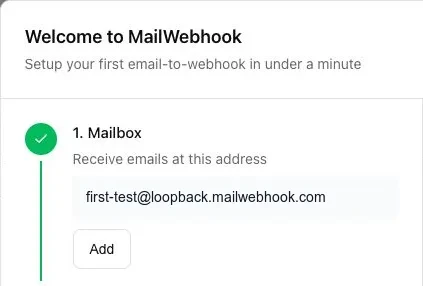
Supported mailbox sources include:
- Gmail
- Microsoft 365, Office 365, and Outlook
- IMAP
- Hosted Mailbox
- Loopback test mailbox
New connected mailboxes start from the current mailbox cursor. They do not import old messages during normal setup. Use backfill later when you need older messages.
2. Save the endpoint
In 2. Endpoint, choose one of these options:
- Configure: paste your public webhook URL.
- Test loopback: use MailWebhook’s built-in test destination for a UI-only first pass.
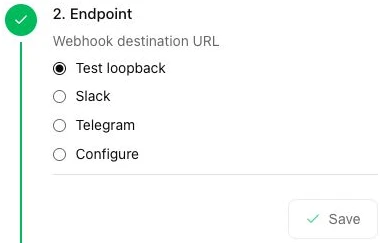
Click Save when the button is active. With Test loopback, the wizard may save automatically; a checkmark on the Save button means the endpoint step is ready.
For an HTTP endpoint, saving this step provisions:
- An endpoint record.
- An enabled route.
- A rule scoped to the selected mailbox address.
- A default pipeline with
map.generic_json.
3. Send the test email
In 3. Send Email, send an email to the displayed mailbox address.
You can use the Send Test Email button when it is available, or send a normal email from your mail client.
Email delivery can take 30-60 seconds depending on the sender and mailbox provider.
4. Inspect the webhook
Use Webhook Preview to inspect the delivery.
The preview can show:
- Request
- Response
curl- Python
- Node.js
When you need the full delivery record, open the delivered event from Events and inspect the delivery attempt response.
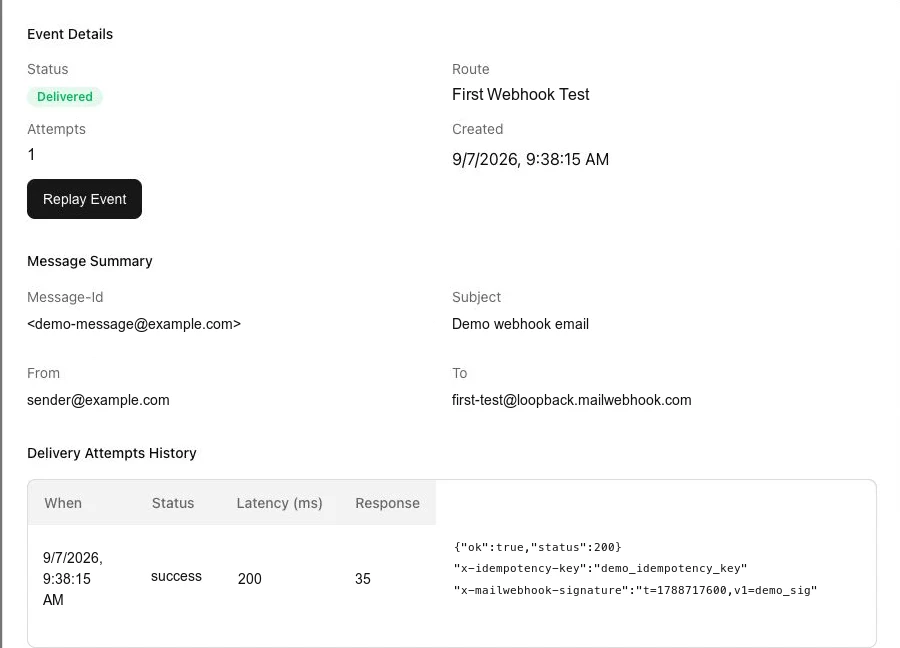
For a configured endpoint, your receiver should also see a JSON POST request with Content-Type: application/json.
Manual setup
Use this path if you are not using onboarding.
1. Create or connect a mailbox
Open Mailboxes and click + Add Mailbox.
Choose the mailbox source you want to test. For IMAP, configure the host, port, folder, and polling interval. For Gmail and Microsoft mailboxes, complete the OAuth flow.
Copy the mailbox email address you want the route to match.
2. Create an endpoint
Open Endpoints and click Add Endpoint.
Set:
- Webhook URL: your public receiving URL.
- Timeout (seconds): keep the default for the first test unless your receiver needs more time.
Click Save Endpoint.
3. Create a route
Open Routes and click Add Route.
Set:
- Route Name:
first-webhook-test - Endpoint: the endpoint you created.
- Enable Route: on.
Use this Rule & Pipeline (JSON) config. Replace alerts@example.com with your mailbox address:
{
  "rule": {
    "to_emails": ["alerts@example.com"]
  },
  "pipeline": {
    "steps": [
      {
        "name": "map.generic_json",
        "args": {}
      }
    ]
  }
}
Click Save Route.
4. Send an email
Send a normal email to the mailbox address used in the route rule.
Use a simple subject such as:
First MailWebhook test
Use a short body such as:
Hello from my first MailWebhook quickstart.
Expected webhook request
MailWebhook sends a JSON POST request to the route endpoint. The body is exactly the route pipeline output.
With the default pipeline, the body is a Generic JSON payload with these top-level keys:
{
  "schema": {
    "name": "mailwebhook.generic",
    "version": "1"
  },
  "event": {
    "id": "evt_...",
    "project_id": "proj_...",
    "route_id": "route_...",
    "created_at": "2026-06-28T12:00:00Z"
  },
  "message": {
    "message_id": "<message-id@example.com>",
    "message_id_type": "original",
    "subject": "First MailWebhook test",
    "date": "2026-06-28T12:00:00Z",
    "from": [
      {
        "name": "Sender",
        "email": "sender@example.com"
      }
    ],
    "to": [
      {
        "email": "alerts@example.com"
      }
    ]
  },
  "body": {
    "text": "Hello from my first MailWebhook quickstart.",
    "attachments": []
  },
  "meta": {
    "source": "imap",
    "raw_size_bytes": 1234,
    "received_at": "2026-06-28T12:00:05Z"
  }
}
The exact meta.source depends on the mailbox provider. See Generic JSON for the full schema and determinism rules.
Delivery requests include:
X-MailWebhook-SignatureX-Idempotency-KeyContent-Type: application/json
Verify the result
A successful first delivery has three signs:
- Your endpoint received an HTTP
POST. - The endpoint returned a
2xxresponse. - The event appears as successful in Webhook Preview or Events.
Open Events to inspect event status, message metadata, and Delivery Attempts History.
After you confirm the first delivery, build the receiving service that will handle real webhook requests. Use Build your application receiver for Node.js, Python, and Go examples that accept MailWebhook payloads and verify signed deliveries.
Common errors
No webhook request arrived
Check:
- The route is enabled.
- The route rule matches the mailbox address that received the email.
- The email was sent after the mailbox was connected.
- The endpoint URL is public and reachable.
- The message has had enough time to arrive. Some providers take 30-60 seconds.
Route did not match
For the first test, keep the rule narrow and simple:
{
  "to_emails": ["alerts@example.com"]
}
If you want a route to match every ingested message, use an empty rule:
{}
Endpoint returned an error
Open Events, select the event, and review Delivery Attempts History.
Retryable failures are retried automatically. After you fix the endpoint, use Replay Event to send the event again.
Payload shape looks different than expected
Check the route pipeline. This quickstart uses:
{
  "steps": [
    {
      "name": "map.generic_json",
      "args": {}
    }
  ]
}
If the route uses map.custom_json or a chat mapper, the webhook body will follow that mapper instead.